

Create a bot
A bot is one AI assistant with its own knowledge selection, instructions, actions, channels, and conversations. Your team can run as many bots as your plan allows, for example one per product.
Open ChatBots in the left sidebar to see every bot in your team.
Before you start
- You need the Owner, Team Admin, or Bot Admin role to create or delete bots. See Teams and members for what each role can do.
Create a bot
-
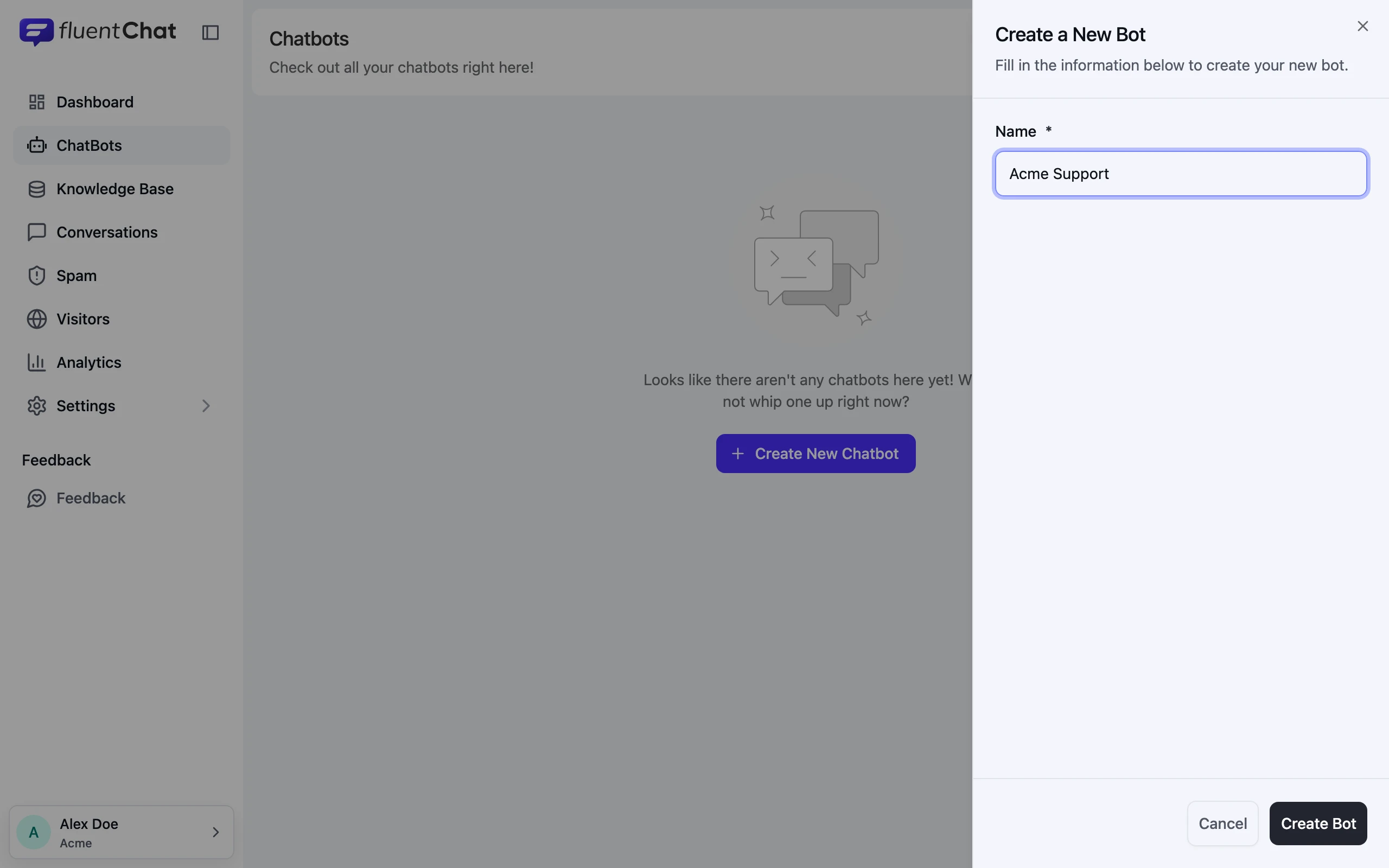
Open ChatBots and click Create New Chatbot.
-
Enter a Name for the bot. Use the name of the product or service it supports: the default instructions refer to it by this name. Each channel has its own display name for visitors.
-
Click Create Bot.
A new bot starts with:
- No knowledge. Its knowledge is set to Choose specific sources with nothing selected. Choose sources next: see Choose a bot’s knowledge.
- Every channel disabled. Turn on a channel before visitors can reach the bot. See Channels.
- No actions. Knowledge search works without any setup. Add others from Actions.
The ChatBots list
Each card shows the bot’s name, a status, the number of sources it can use (Resources), and its total Messages.
| Status | What it means |
|---|---|
| Ready | The bot has sources to answer from. |
| Awaiting Sources | No sources are selected for this bot yet. |
Click a card to open the bot.
Find your way around a bot
Inside a bot, the sidebar is grouped into three sections. Click Back to Chatbots to return to the list.
| Section | Page | What you do there |
|---|---|---|
| Main | Dashboard | See totals and get the install code. Bot dashboard |
| Main | Knowledge | Choose which team sources the bot uses. Choose a bot’s knowledge |
| Main | Actions | Add and configure capabilities. Actions |
| Main | Channels | Turn on and customize where people reach the bot. Channels |
| Main | Integrations | Connect WordPress. WordPress integration |
| Main | Playground | Test answers privately. Playground |
| Main | Conversations | Read the bot’s conversation history. Conversations |
| Main | Content Gaps | Review questions the bot couldn’t answer. Content Gaps |
| Statistics | Analytics and Document Usage | Track requests, tokens, and which documents answers use. Analytics |
| Settings | Settings | Rename the bot, write global instructions, manage the answer cache, or delete the bot. Bot settings |
On some pages, such as a channel editor, the sidebar collapses to icons in the same order.
Rename a bot
Open Settings, change Bot name under Chatbot identity, and click Save bot name.
Delete a bot
Open Settings and click Delete chatbot. Deletion is permanent and runs in the background. See Bot settings for exactly what it removes.
In short: everything that belongs to the bot goes, including its conversations, visitor profiles, actions, channel settings, and WordPress connection. Your team’s sources stay in the Knowledge Base.