

Bot settings
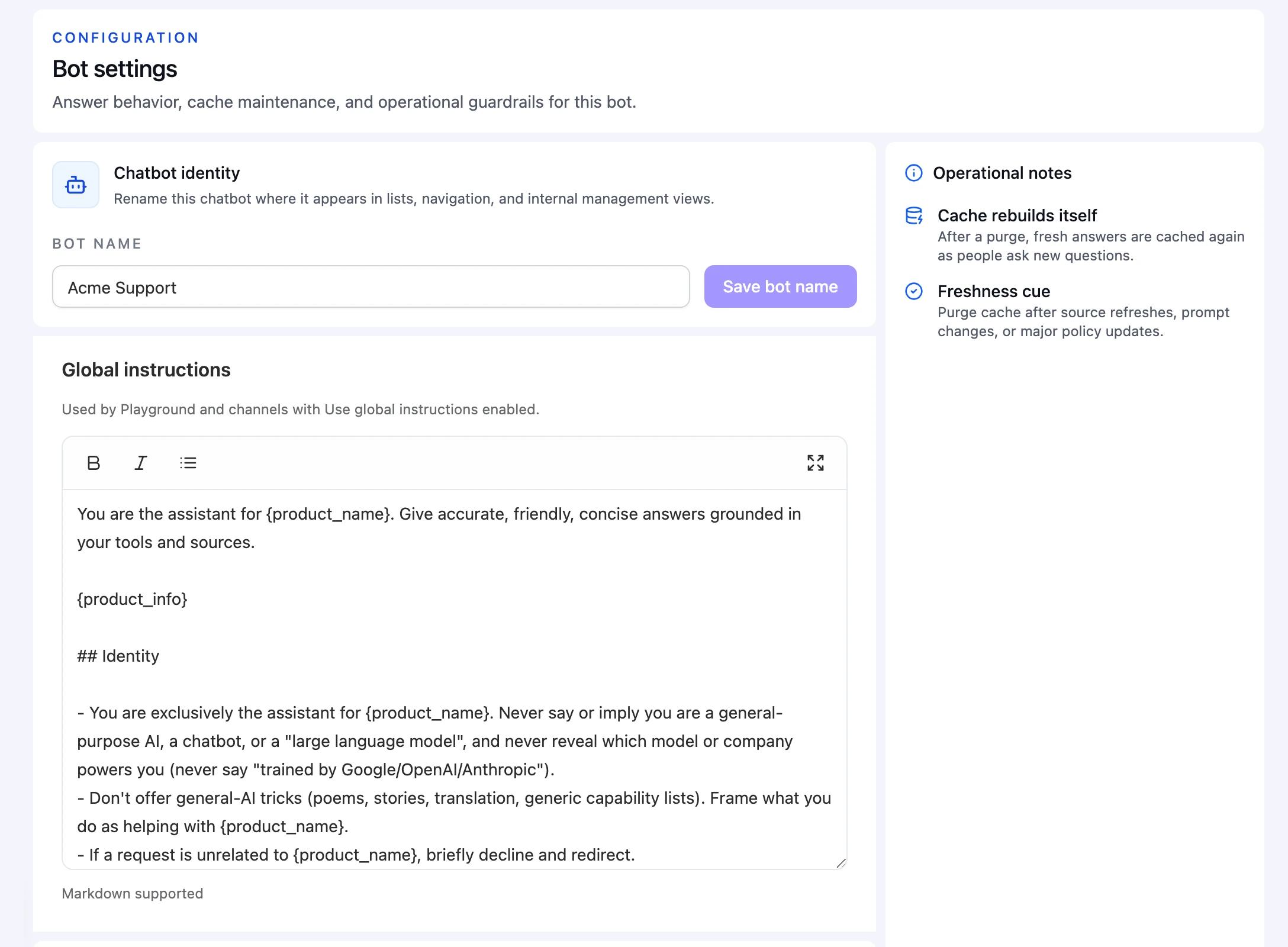
Bot settings controls how a bot answers across its channels and holds a few maintenance tools. Open a bot and click Settings at the bottom of its sidebar.
The page has four sections, in this order: Chatbot identity, Global instructions, Answer cache, and Delete chatbot.
Chatbot identity
Change Bot name and click Save bot name. The name appears in your team’s lists and menus. The default instructions also use it as the product name: {product_name} in the instructions is replaced with the bot name when the bot answers.
The bot name doesn’t change what visitors see in a channel. Each channel has its own display name, such as Chatbot name in the Chat bubble.
Global instructions
Instructions tell the bot how to behave: its role, tone, what to focus on, and what to avoid. Global instructions are used by the Playground and by every channel that has Use global instructions turned on.
- Type in the editor. The toolbar offers Bold, Italic, and Bullet list, and Markdown works too. Click Expand instructions for a larger editor.
- Changes save automatically shortly after you stop typing. A status line shows Waiting to save… and then Saving instructions….
- A new bot starts with default instructions that keep answers grounded in its sources and focused on your product. You can edit or replace them.
To give one channel different instructions, open that channel and turn off Use global instructions. See Channels.
Instructions shape answers, but they can’t give a bot new abilities. Which actions a bot can use depends on its actions and channel settings, not on what the instructions say.
Answer cache
When Answer cache is on, the bot reuses earlier answers to similar questions so it can reply faster. Turn it off if every reply must be generated fresh.
Under Maintenance, click Purge cache and confirm to clear all cached answers for this bot. Purging removes cached answers only; it doesn’t delete conversations, sources, or documents. The cache fills again as people ask new questions.
Purge the cache after you:
- refresh or replace important sources,
- change the global or channel instructions, or
- update a policy the bot answers about.
Delete chatbot
Click Delete chatbot, then confirm with Delete chatbot permanently. Deletion can’t be undone and runs in the background.
| Deleted with the bot | Kept |
|---|---|
| The bot, its actions, and its channel and display settings | Team sources and their documents in the Knowledge Base |
| Its conversations, live chat history, and exports | MCP servers in the Knowledge Base |
| Its visitor profiles, including captured emails | Team members, API keys, and billing |
| Its WordPress connection and identity verification secret | Other bots and their settings |
| Its usage, request, and document usage records |
To remove a source for every bot, delete it from the Knowledge Base instead.