

FluentBooking
The FluentBooking action lets your bot help visitors with appointments on your connected WordPress site. It shows live available times, prepares a booking, reschedule or cancellation, and the visitor confirms it in the chat.
Open Bot > Actions > Action library > FluentBooking.
Best for: free one-to-one appointments, such as demos, consultations or support calls.
Common requests:
- “Can I book a demo next Tuesday?”
- “I need to move my appointment to Friday.”
- “Please cancel my call tomorrow.”
Before you start
- You need the Owner, Team Admin or Bot Admin role.
- This bot’s WordPress integration must be set up and enabled. Until it is, the library shows “Set up and enable the WordPress integration before creating or enabling this action.” with a Set up WordPress button. See WordPress integration.
- FluentBooking must be installed on the connected WordPress site, with at least one free one-to-one event. If the site also runs FluentBooking Pro, it must be version 2.5.0; Check access reports other versions as unsupported.
- The FluentBooking action must be available on your FluentChat account. It’s off by default in FluentChat’s configuration; if you can’t enable it after a successful check, contact FluentChat through Feedback.
- In WordPress, open FluentChat → Integrations → FluentBooking. Allow the events and booking operations you want the bot to use.
Add the FluentBooking action
-
Open the template. In Action library, select FluentBooking, then Start customizing.
-
Name the action. In General, enter an Action name and review When to use.
-
Check access. In FluentBooking access, select Check access. When it succeeds, the editor says “Booking access verified. Review the events and permissions below.”
-
Choose operations and events. Under Booking operations, select what the bot may do. Under Booking events, select the events it may offer. Select Save and continue.
-
Choose channels. Turn on the website channels that may use the action, then select Save, or Save & enable.
-
Enable the action. Turn on Enable action if you didn’t use Save & enable.
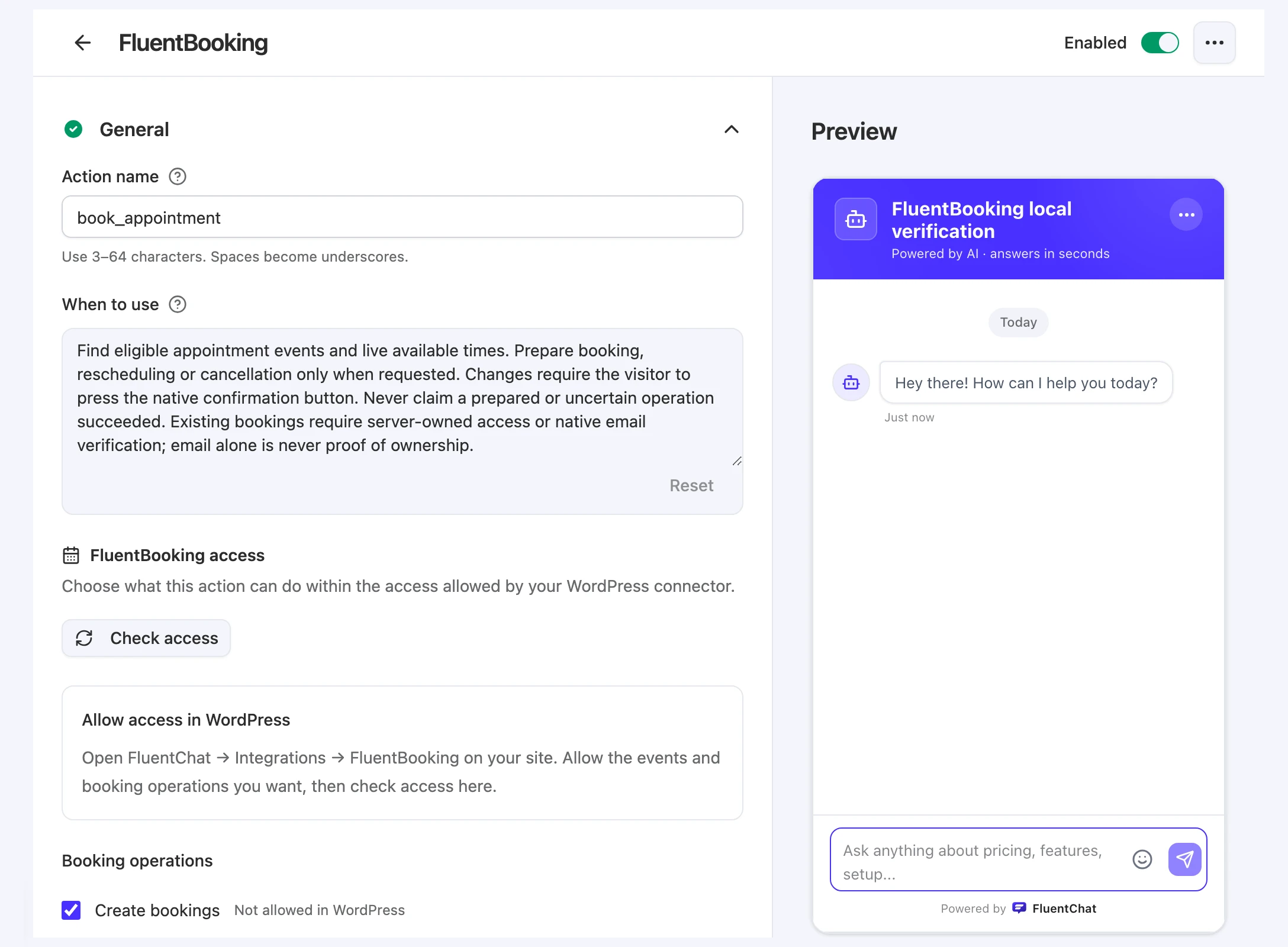
Settings
| Setting | What it does |
|---|---|
| Action name | The name the bot uses to call this action. Use 3–64 characters. Spaces become underscores. |
| When to use | Tells the bot when to help with appointments. The default requires the visitor’s confirmation for every change. Select Reset to restore it. |
| Check access | Reads what WordPress allows. “Checking access does not create a booking.” |
| Booking operations | Create bookings, Reschedule bookings and Cancel bookings. An operation that WordPress doesn’t allow shows Not allowed in WordPress. Select at least one. |
| Booking events | The eligible events, with their duration and time zone. Select at least one, up to 100. |
If WordPress stops allowing a selected event, it shows “Unavailable event … — remove this selection or restore access in WordPress.”
What the visitor sees
- Choose an event and date. The bot lists the events you selected. It may show a card to confirm the date and time zone before it looks up times.
- Pick a time. The chat shows live available times. The visitor can choose another day from the card.
- Provide details. For a new booking, the bot collects the attendee’s name, email and any answers the event requires.
- Review and confirm. The chat shows a review card. The appointment changes only when the visitor selects Confirm booking, Confirm reschedule or Confirm cancellation. Typing “yes” isn’t a confirmation.
To reschedule or cancel, the bot first looks up the visitor’s upcoming bookings. Visitors signed in through your WordPress connection can see their own bookings. Other visitors verify their email in the chat with a six-digit code (Send verification code, then Verify code). An email address typed in a message is never proof of ownership.
If the outcome is unknown, the card says so and offers Check status. The bot never claims a booking succeeded without a confirmed result.
Channel compatibility
| Channel | Supported |
|---|---|
| Chat bubble | Yes |
| Help page | Yes |
| Center stage | Yes |
| API | No |
| Fluent Support | No |
Limitations
- Free one-to-one events only. Paid, group and recurring bookings are unavailable.
- Every change needs the visitor’s confirmation. The bot prepares changes; it can’t book, reschedule or cancel on its own.
- Existing bookings need ownership. Visitors must be signed in through WordPress or verify their email before they can see or change appointments.
- Time and confirmation cards expire. If a card says “This preview has expired. Ask for a fresh one.”, ask the bot for new times.
- Website channels only. The API and Fluent Support channels can’t use this action, and the Playground can’t run it. Test it in Preview.
Troubleshooting
No eligible events are available. Allow a free one-to-one event in WordPress, then check access again.
Possible cause: WordPress allows no events, or the allowed events are paid, group or recurring.
Solution: In WordPress, open FluentChat → Integrations → FluentBooking and allow a free one-to-one event. Then select Check access.
Connect WordPress and enable verified appointment permissions before enabling this action.
Possible cause: The WordPress connection is missing or disabled, access hasn’t been allowed, or booking access hasn’t been verified yet. The editor may also say “Booking access needs verification before this action can be enabled.”
Solution: Check the bot’s WordPress integration, allow access in WordPress, then select Check access. The action can be enabled once the editor no longer shows a verification message.
An operation shows Not allowed in WordPress
Possible cause: The connector doesn’t allow that operation.
Solution: Allow it in FluentChat → Integrations → FluentBooking, then select Check access.