

Help page
The Help page is a full page where customers ask your bot questions. It carries your logo, a hero image, suggested messages, and links to other resources, and you can share it as a link or place it on a WordPress page.
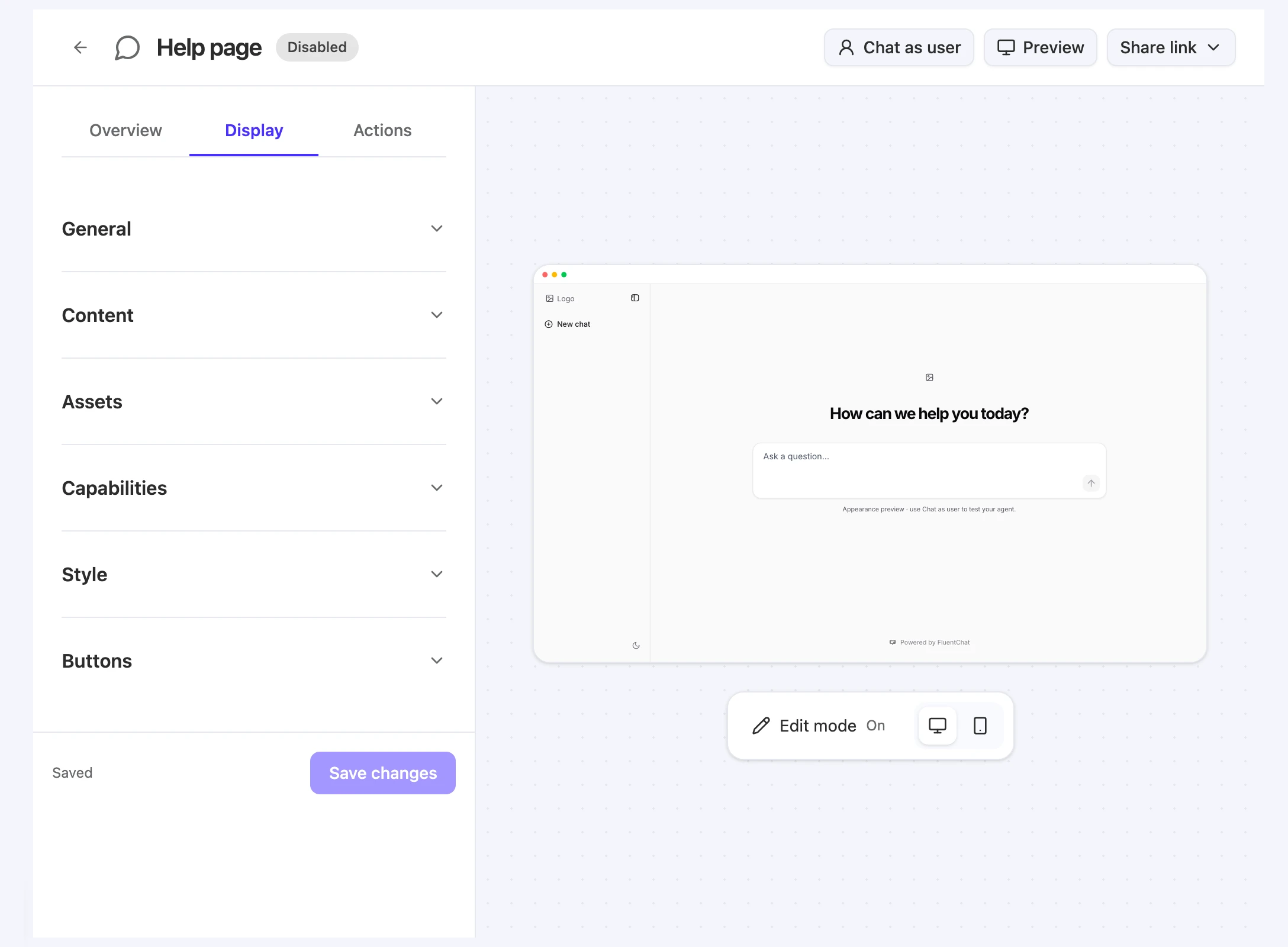
Open Bot > Channels > Help page. The header has Chat as user, Preview, and Share link. The settings panel has three tabs, Overview, Display, and Actions, and a live preview of the page sits on the right.
Before you start
- You need widget edit access to open and change the Help page: Owner, Team Admin, Bot Admin, or Bot Editor with access to this bot.
- The Help page starts Disabled on a new bot. Its link doesn’t work until you turn it on.
Publish the help page
-
Customize the page. On the Display tab, set the page title, welcome message, images, and buttons. See Display tab below.
-
Save your changes. Select Save changes at the bottom of the tab. The status changes from Unsaved changes to Saved.
-
Turn the channel on. In Bot > Channels, turn on the Help page availability switch.
-
Copy the link. Back on the Help page, select Share link > Public help page, then select Copy link. With the channel enabled, Open help page opens it in a new tab.
The link has this form:
https://dash.fluentbot.ai/help/YOUR_BOT_IDTo place the Help page inside a WordPress page instead, select Share link > WordPress. With a connected site, the app tells you to “Add the Help Page block or shortcode to a page in WordPress.” See WordPress integration.
Use the live preview
The preview on the right shows your draft settings before you save. Below it are Edit mode and the Desktop help preview and Mobile help preview buttons.
Edit mode controls whether you can work on the page inside the preview:
| Edit mode | What you can do |
|---|---|
| On | Type the welcome message directly on the page, and select the logo or hero image to upload a new one. Links in the preview don’t open, and the preview doesn’t send questions. |
| Off | The preview is view-only. |
Edits made in the preview change your draft. Select Save changes to keep them.
To chat with the Help page, use Chat as user or Preview. Chat as user replaces the page preview with a test chat for a signed-in test user. Preview opens the Help page in a new browser tab. Both work while the channel is disabled.
Display tab
The Display tab has six sections. Changes are saved only when you select Save changes. If you leave with unsaved changes, the app asks “Leave without saving your channel changes?”
Until you save, the page starts from defaults: the bot’s name as the Page title, “How can we help you today?” as the welcome message, and up to the first four Chat bubble quick questions as suggested messages.
General
| Setting | What it does |
|---|---|
| Page title | The browser tab title and the logo’s alternative text. Up to 100 characters. |
| Search description | ”Used in page metadata.” Up to 300 characters. |
| Favicon | The browser tab icon. Select Upload favicon. JPG, PNG, or SVG up to 1 MB. |
Content
| Setting | What it does |
|---|---|
| Welcome message | The heading customers see first. Up to 150 characters. |
| Message placeholder | The hint text in the question box. Up to 100 characters. |
| Suggested messages | Turns suggested messages on or off. Select Add message to add up to four. |
Each suggested message has a type, an icon, and a label of up to 200 characters. Use the up and down arrows to reorder them.
| Type | What it does |
|---|---|
| Basic | One question customers can select. |
| Nested | A category that opens a list of questions. Select Add option to add up to six. |
Icons are No icon, Sparkles, Book, Message, and Support.
Assets
| Setting | What it does |
|---|---|
| Scheme | Choose Light or Dark to set the images for that theme. |
| Logo | Select Upload logo, or paste an image URL. JPG, PNG, or SVG up to 1 MB. |
| Hero image | Select Upload hero image, or paste an image URL. JPG, PNG, or SVG up to 1 MB. |
Capabilities
| Setting | What it does |
|---|---|
| Attachments | Lets customers attach files. “Available for human-only chat. Send any written question before opening the attachment composer.” |
Style
| Setting | What it does |
|---|---|
| Enable theme switch | Lets customers switch between light and dark themes. |
| Default theme | Light or Dark. |
| Light primary color | The accent color in the light theme. |
| Dark primary color | The accent color in the dark theme. |
| Field glow | Adds a glow around the question box. |
Buttons
| Setting | What it does |
|---|---|
| Primary button | A link in the page’s top navigation, with a label of up to 50 characters and a destination URL. It appears only when both are filled in. |
| Secondary button | A second navigation link with its own label and URL. |
| Link buttons | Link cards below the question box, each with a title of up to 80 characters, a URL, and a description of up to 200 characters. Select Add link to add up to four. |
Overview and Actions tabs
The Overview tab shows the Model, the bot’s Data sources, and the Instructions this channel uses. The Actions tab sets which configured actions the Help page can use. See Settings every channel shares.
Human support options, such as offering a person, come from the Chat bubble’s Capabilities settings. See Chat bubble.
Limitations
- Each bot has one Help page. Its link uses the bot ID and can’t be customized.
- Images are limited to JPG, PNG, and SVG up to 1 MB.
- Attachments work only in human-only chat.
- The page has up to four suggested messages and four link buttons.
Troubleshooting
The help page link shows a not found page
Possible cause: The Help page is disabled.
Solution: In Bot > Channels, turn on Help page availability, then reload the link.
My changes don’t appear on the public page
Possible cause: The changes weren’t saved. The preview shows your draft, but the public page shows saved settings.
Solution: Select Save changes and wait for Saved, then reload the public page.
Choose a JPG, PNG or SVG up to 1 MB.
Possible cause: The image is another file type or larger than 1 MB.
Solution: Convert or resize the image, then upload it again.