

Channels
A channel is a place where people reach your bot. Each channel receives messages and delivers the bot’s replies, with its own availability, instructions, and action permissions.
Open Bot > Channels. The page lists five channels, each with an Open button and an availability switch.
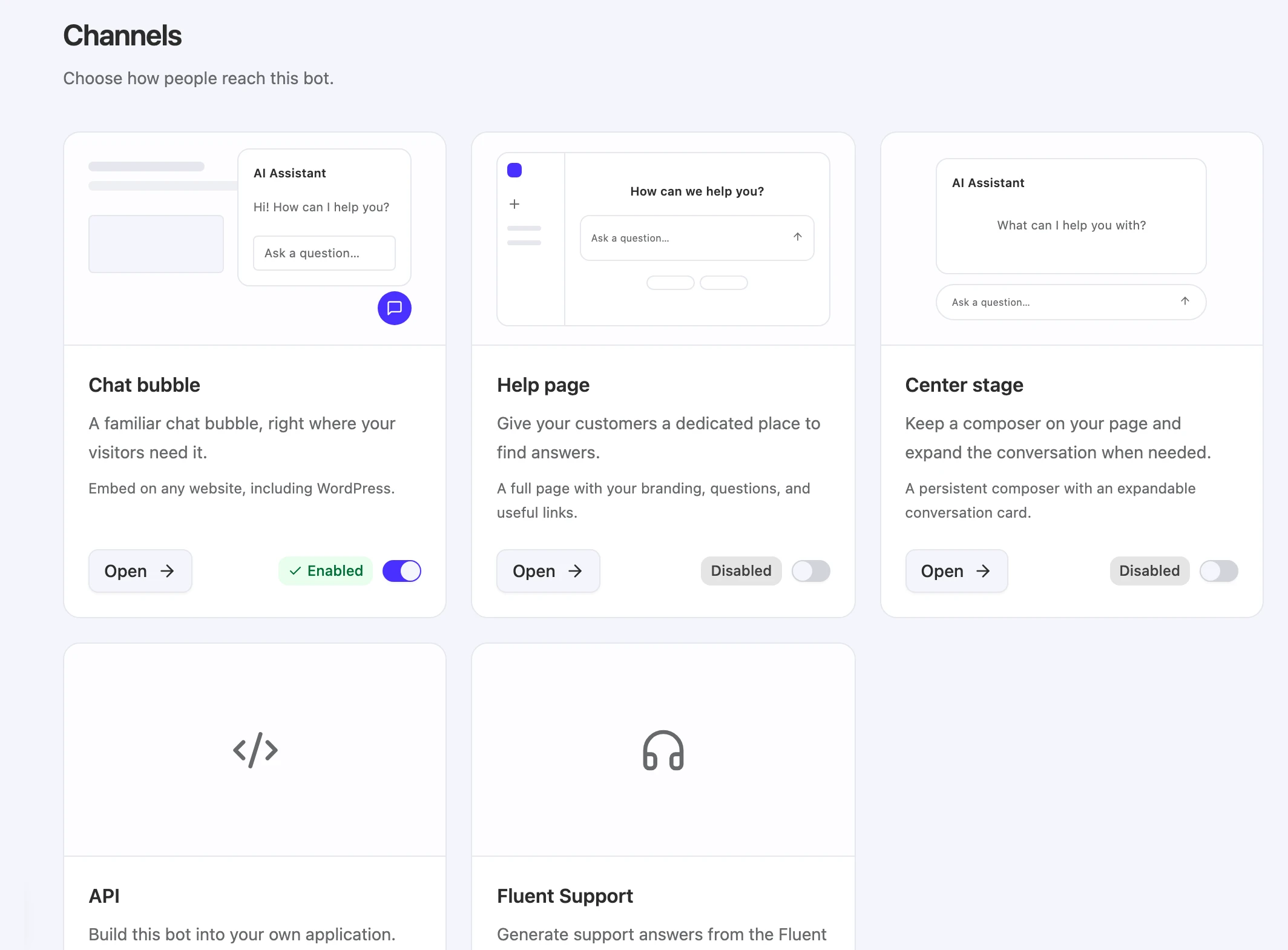
Channels, actions, and integrations
Three areas of a bot sound alike but do different jobs:
| Area | What it is | Where you manage it |
|---|---|---|
| Channels | Where conversations happen: a website, a help page, your own app, or Fluent Support. | Bot > Channels |
| Actions | What the bot can do during a conversation, such as web search or live chat handoff. Knowledge search is always available and isn’t an action. | Bot > Actions |
| Integrations | A connection to another platform. WordPress is an integration, not a channel. | Bot > Integrations |
The Channels page sums it up: “Channels receive and deliver messages. Actions are the capabilities your bot can use.”
The five channels
| Channel | What it is | Where it appears | How you publish it |
|---|---|---|---|
| Chat bubble | A floating button that opens a chat panel. | Any website, including WordPress. | Add to website: Website widget, Website iframe, or WordPress. |
| Help page | A full page with your branding, suggested questions, and useful links. | A hosted link, or a WordPress page. | Share link: Public help page or WordPress. |
| Center stage | A composer that stays at the bottom center of your page and expands into a conversation card. | Any website, including WordPress. | Add to website: Website widget or WordPress. |
| API | REST access for your own application. /chat and /responses share this channel. | Your server, or a browser or mobile app through short-lived sessions. | A team API key from Settings > API Keys. |
| Fluent Support | Support answers generated for the Fluent Support plugin in WordPress. | Fluent Support in your WordPress admin. | A per-bot credential from Create connection. |
For step-by-step installation, see Add chat to your website.
Turn a channel on or off
Each channel has one availability switch on Bot > Channels. Its label reads Enabled or Disabled, and the same label appears next to the channel name when you open it.
Every channel starts disabled on a new bot. Turn a channel on before you share or embed it, or visitors won’t be able to use it.
When a channel is Disabled:
- Website channels (Chat bubble, Help page, Center stage) stop loading for visitors. The embedded widget doesn’t start, the iframe link and the hosted help page link return a not found page, and visitors who already have the page open can’t continue chatting.
- API requests to
/chatand/responsesare refused withThis channel is disabled. - Fluent Support requests from WordPress are refused, and the connector can’t finish verifying the connection.
Disabling a channel doesn’t delete anything. Its display settings, instructions, and action permissions stay as they are, and you can prepare action permissions before you turn a channel on.
You can still test a disabled website channel yourself with Chat as user or Preview. These previews need access to the bot and don’t make the channel available to visitors.
Settings every channel shares
Open a channel to see its settings. Website channels show three tabs: Overview, Display, and Actions. The API and Fluent Support pages show the same instructions and actions controls on a single page.
Model
Model shows Managed automatically: “The platform manages the AI model for your conversations.” There’s nothing to choose.
Data sources
Data sources shows the bot’s knowledge scope, All team sources or Selected sources, with the number of knowledge sources and documents. The scope is the same for every channel. Select Knowledge sources to change it in Bot > Knowledge. See Choose a bot’s knowledge.
Instructions
By default, each channel uses the bot’s Global instructions, which you edit in Bot > Settings. The Use global instructions switch controls this:
| Switch | What happens |
|---|---|
| On | ”This channel uses your bot’s global instructions.” Edits to the global instructions apply to this channel right away. |
| Off | The channel gets its own instructions, labeled Channel override. The editor starts with a copy of the current global instructions. Edits save automatically, and Markdown is supported. |
Turning the switch back on returns the channel to the global instructions. The Playground always uses the global instructions.
Instructions shape how the bot answers. They don’t give the bot access to actions.
Actions
The Actions tab lists the actions that can work in this channel: “Knowledge search is always available. Choose which configured actions this channel can use.” Each action has a switch and a status:
| Status | What it means |
|---|---|
| Available on this channel | The action is allowed here. |
| Unavailable on this channel | The action is set up but not allowed here. Turn on its switch to allow it. |
| Disabled for this bot | The action is turned off in Bot > Actions. Allowing it here doesn’t turn it on. |
| Finish setup in Actions | The action isn’t fully set up. Its switch stays off until you finish it. |
An action runs in a conversation only when all of these are true: the action is enabled, its setup is complete, this channel allows it, and the channel is enabled. When you add a new action, it starts off for every channel.
Not every action fits every channel. Website-only actions, such as live chat, forms, and buttons, don’t appear on the API or Fluent Support channels. If nothing fits, the tab shows “No compatible actions available. Add or finish an action to use it here.” See Actions.
Limitations
- Each bot has one configuration per channel. Every page or app that uses a bot’s Chat bubble, for example, shows the same Chat bubble settings. To show different settings, use another bot.
- Knowledge scope is set per bot, not per channel. Every channel answers from the same sources.
- Instructions never grant tools. To let a channel use an action, allow it on the channel’s Actions tab.