

Conversations
Conversations is the history of one bot’s chats. Use it to read what visitors asked, see how the bot answered, and export or delete a conversation.
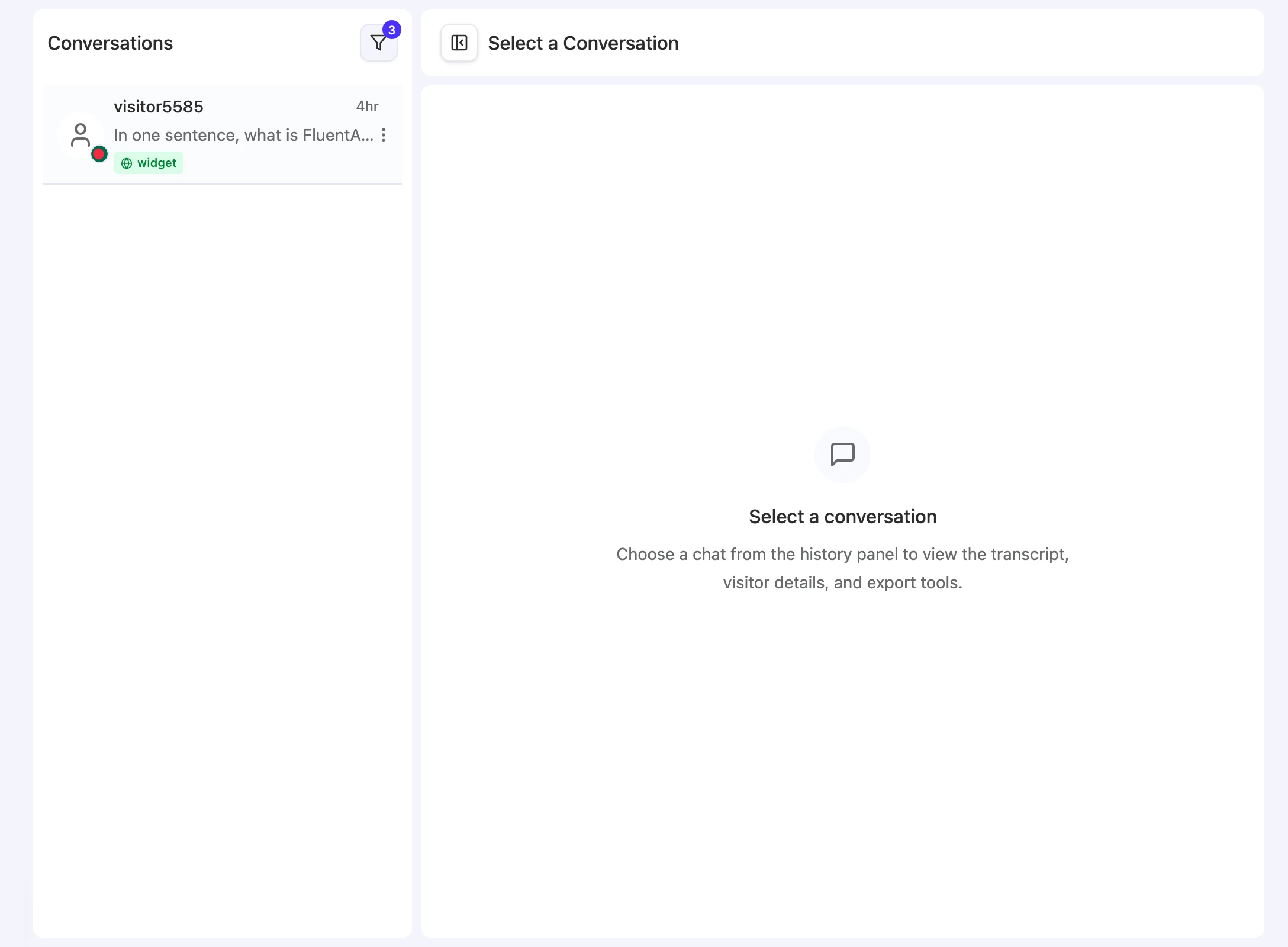
Open Bot > Conversations. The page has a conversation list on the left and the selected transcript on the right. The list header shows the conversation count and a Filter conversations button.
Before you start
- To view conversations, you need access to this bot. Any team role can be given bot access.
- To delete conversations, you need the Owner, Team Admin, or Bot Admin role. See Teams and members.
Find a conversation
Conversations are listed newest first. Each row shows the visitor’s name or identifier, the date, a preview of the latest message, and the source.
-
Open the filter. Select Filter conversations above the list.
-
Choose sources. Under Source, tick Widget, API, Fluent Support, or any combination. Clear all resets the filter.
-
Open a conversation. Select a row to load its transcript on the right.
| Source | Where the conversation came from |
|---|---|
| Widget | A website channel: Chat bubble, Help page, or Center stage. |
| API | The API channel. |
| Fluent Support | The Fluent Support channel. |
Chats you have in the Playground don’t appear in this list.
Check visitor details
With a conversation open, select View chat info. The Info panel shows the conversation’s source and creation time.
Under Visitor Sessions, each recorded request can show:
- The page URL the visitor was on.
- IP address and browser.
- City, region, and country, plus timezone.
If nothing was recorded, the panel reads “No visitor data available”. For live visitors and contact data, see Visitors.
Export a conversation
-
Open the conversation. Select it in the list.
-
Choose a format. Select Export conversation, then CSV or JSON. The file downloads straight away.
| Format | What it contains |
|---|---|
| CSV | One row per message, with the columns chat_id, started_at, source, visitor_email, role, content, and message_created_at. |
| JSON | The conversation’s ID, bot ID, source, title, start time, and visitor (ID, name, email), followed by its messages. |
Delete conversations
To delete one conversation, open the row’s Conversation actions menu and select Delete. Confirm in the Delete conversation? dialog.
To delete several:
-
Start a selection. Open any row’s Conversation actions menu and select Select.
-
Pick conversations. Tick the rows you want. The header shows how many are selected.
-
Delete. Select Delete, then confirm. Cancel leaves selection mode without deleting.
Deleting a conversation doesn’t give back message usage, and it doesn’t delete the visitor’s profile. See Usage and Email capture.
Limitations
- You can export one conversation at a time. There’s no bulk export on this page. For programmatic access, see the REST API.
- Playground chats are excluded. Find them in the Playground’s own history.
- Deleted conversations can’t be restored. Export anything you need first.
Troubleshooting
”No conversations found.”
Possible cause: The bot hasn’t had any chats from the selected sources, or your source filter excludes them.
Solution: Select Clear all in the filter. If the list is still empty, test a live channel, such as the chat bubble on your site. Playground chats don’t count here.
Deleting a conversation fails
Possible cause: Your role can view the bot but can’t change it.
Solution: Ask an Owner, Team Admin, or Bot Admin to delete it.