

Center stage
Center stage keeps a message composer visible at the bottom center of your page. When a visitor starts chatting, it expands into a conversation card above the composer.
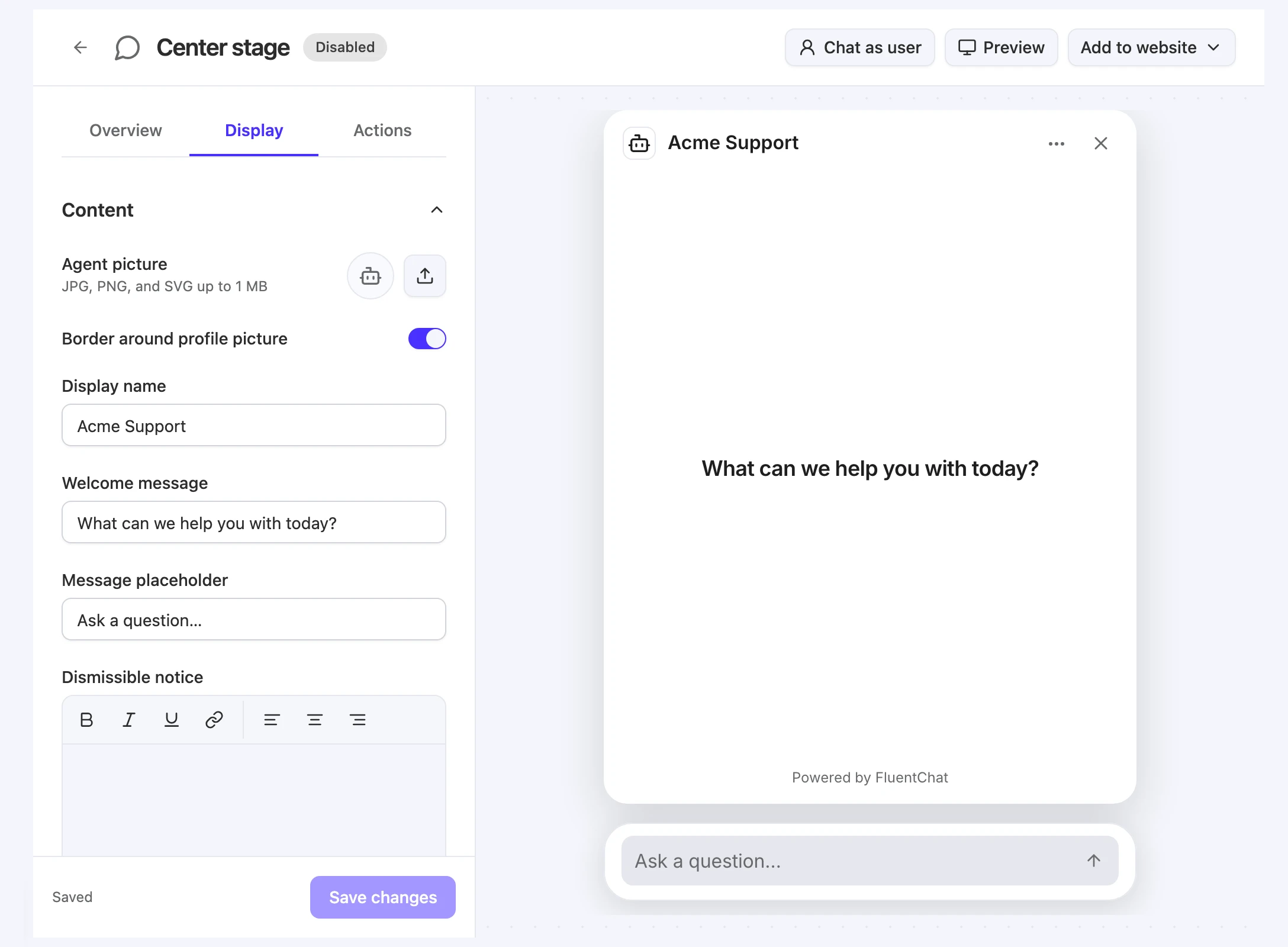
Open Bot > Channels > Center stage. The header has Chat as user, Preview, and Add to website. The settings panel has three tabs, Overview, Display, and Actions, and a live preview sits on the right. On a phone-sized screen, use Settings and Preview to switch between them.
Before you start
- You need widget edit access to open and change Center stage: Owner, Team Admin, Bot Admin, or Bot Editor with access to this bot.
- Center stage starts Disabled on a new bot. Visitors can’t use it until you turn it on.
Set up and publish Center stage
-
Customize the display. On the Display tab, set the content, style, and layout. See Display tab below.
-
Save your changes. Select Save changes at the bottom of the tab. The status changes from Unsaved changes to Saved.
-
Turn the channel on. In Bot > Channels, turn on the Center stage availability switch.
-
Add it to your website. Select Add to website > Website widget, then Copy install code, and paste it before the closing
</body>tag. For WordPress, choose Add to website > WordPress. See Add chat to your website.
To open Center stage from your own button, call window.fluentChatWidget.open() after the install code runs. See Widget SDK.
Test Center stage
| Control | What it does |
|---|---|
| Live preview (right side) | Shows your draft settings as you edit. |
| Chat as user | Starts the preview as a signed-in test user. Enter a User ID and Metadata as a JSON object. |
| Preview | Opens Center stage in a new browser tab. |
Both test options work while the channel is disabled. The Display tab notes: “Save changes before testing uploads or feedback. These use your saved settings.”
Display tab
The Display tab has seven sections. Changes are saved only when you select Save changes. If you leave with unsaved changes, the app asks “Leave without saving your channel changes?”
Until you save, Center stage takes its Display name, picture, and accent color from the Chat bubble, and up to the first four Chat bubble quick questions as suggested messages. After you save, Center stage keeps its own values.
Content
| Setting | What it does |
|---|---|
| Agent picture | The bot’s profile picture. JPG, PNG, and SVG up to 1 MB. |
| Border around profile picture | Adds a border around the picture. |
| Display name | The name shown for the bot. Up to 100 characters. |
| Welcome message | The welcome text visitors see. Up to 150 characters. The default is “What can we help you with today?” |
| Message placeholder | The hint text in the composer. Up to 120 characters. |
| Dismissible notice | A short notice visitors can close. Up to 200 characters. |
| Footer | Footer text. Up to 200 characters. |
| Suggested messages | Shows suggested messages visitors can select. Select Add message to add them: “Up to 4 messages, 200 characters each.” Each message must be unique. |
| Keep showing suggested messages | Keeps the suggestions visible after the visitor sends a message. Available when Suggested messages is on. |
Capabilities
| Setting | What it does |
|---|---|
| Agent chat bubble | ”Show AI replies inside chat bubbles.” |
| Attachments | ”Allow visitors to upload files during human support.” |
| Copy message | ”Let visitors copy replies and code snippets.” |
| Collect user feedback | ”Let visitors rate AI answers with a thumbs up or down.” |
Human support options, such as offering a person, come from the Chat bubble’s Capabilities settings. See Chat bubble.
Style
| Setting | What it does |
|---|---|
| Theme | light or dark. |
| Tinted grayscale | ”Adjust the hue and tone of neutral surfaces separately from your accent color.” When on, set Hue (0 to 360), Tint (0 to 9), Shade (-4 to 4), and the Input box style: light, dark, or tinted. |
| Accent color | Turns the accent color on and sets it with Color, a six-digit hex value such as #4931FF. |
| Use accent color for send icon | Colors the send icon with the accent color. |
Header
| Setting | What it does |
|---|---|
| Minimal | ”Uses the panel’s background.” |
| Solid | One Header color. |
| Gradient | A Start color and an End color. |
| Tint | One Header color. |
Typography
| Setting | What it does |
|---|---|
| Font family | Inter, System, Arial, Helvetica, Georgia, or Geist. |
| Font size | 12px, 14px, 16px, 18px, or 20px. New bots use 16px. |
Floating bubble
| Setting | What it does |
|---|---|
| Close on outside click | ”Closes the conversation card while keeping the composer and your draft visible.” Visitors can also press Escape to close it, and select the composer to reopen an existing conversation. |
Layout
| Setting | What it does |
|---|---|
| Preferred desktop width (px) | 400 to 720. “Fits smaller screens automatically.” New bots use 450. |
| Preferred desktop height (px) | 480 to 1000, “including the conversation and input.” “Fits shorter screens automatically.” New bots use 668. |
| Bottom spacing (px) | 8 to 96, “plus the device safe area.” New bots use 12. |
Overview and Actions tabs
The Overview tab shows the Model, the bot’s Data sources, and the Instructions this channel uses. The Actions tab sets which configured actions Center stage can use. See Settings every channel shares.
Limitations
- Center stage has no iframe embed. Use the Website widget install code or WordPress.
- Each bot has one Center stage configuration. Every page that embeds it shows the same settings.
- Pictures are limited to JPG, PNG, and SVG up to 1 MB.
- Notice and footer text are limited to 200 characters each.
Troubleshooting
Enter a desktop height between 480 and 1000 pixels.
Possible cause: Preferred desktop height (px) is outside the allowed range.
Solution: Enter a whole number from 480 to 1000, then select Save changes.
Enter an accent color with six hex digits, such as #4931FF.
Possible cause: The accent color isn’t a six-digit hex value.
Solution: Enter a value like #4931FF. Header colors follow the same format.
Write a unique suggested message in each row, or remove the empty rows.
Possible cause: A suggested message is empty or repeats another one.
Solution: Fill in or remove empty rows, and make each message different.
The composer doesn’t appear on my website
Possible cause: Center stage is disabled, or the page uses the Chat bubble install code.
Solution: Turn on Center stage availability in Bot > Channels. Copy the install code from Center stage > Add to website, which includes layout: "center-stage".