

Bot dashboard
The bot Dashboard is the first page you see when you open a bot. It shows the bot’s totals, the quickest way to add it to a website, and the sources it uses.
Open a bot from ChatBots, or click Dashboard in the bot’s sidebar.
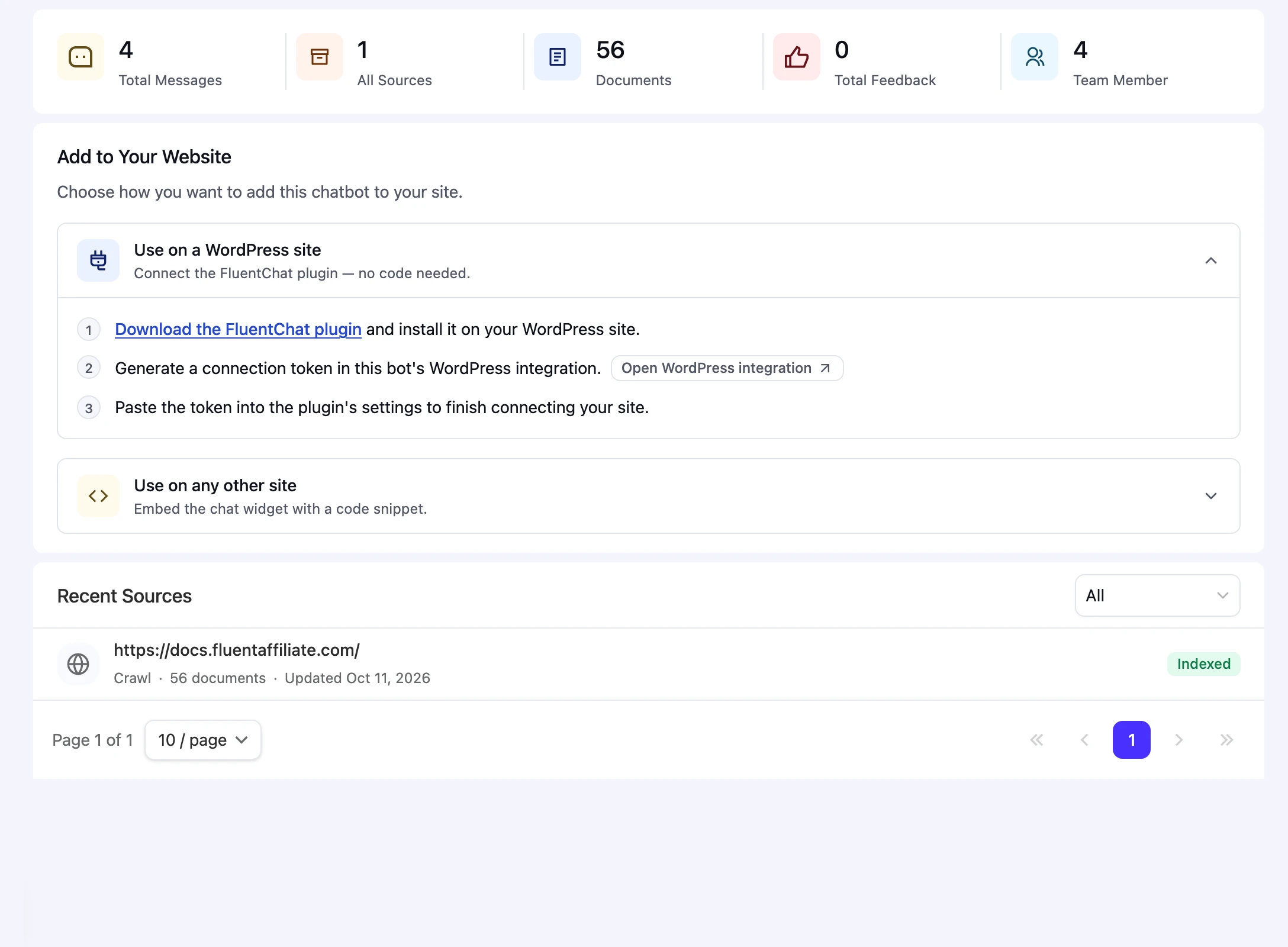
Totals
| Total | What it counts |
|---|---|
| Total Messages | Messages in this bot’s conversations, including Playground tests. |
| All Sources | Team sources this bot can use. |
| Documents | Documents in those sources. |
| Total Feedback | Thumbs-up and thumbs-down ratings on this bot’s answers. |
| Team Member | Team members with access to this bot. |
Add to Your Website
This panel offers two ways to publish the bot. Turn on the Chat bubble channel first; new bots start with every channel disabled.
Use on a WordPress site connects the FluentChat connector plugin:
- Download the FluentChat plugin and install it on your WordPress site.
- Generate a connection token in the bot’s WordPress integration. Click Open WordPress integration.
- Paste the token into the plugin’s settings.
If the bot already has a WordPress connection, the panel links to that connection instead. See WordPress integration.
Use on any other site shows the install code. Paste it before your page’s closing </body> tag.
| Button | What it does |
|---|---|
| Copy Embed | Copies the install code. |
| Copy bot ID | Copies the bot’s ID, which you need for the Widget SDK and the REST API. |
| Try Demo | Opens the Playground. |
For iframe and other options, see Add chat to your website.
Recent Sources
The list shows the sources this bot can use, with each source’s type, document count, last update, and status. To change which sources the bot uses, open Knowledge.