

Message shortcuts
A message shortcut is a saved reply your team can drop into the live chat composer. Each one has a trigger, a message, and a tag. Shortcuts belong to the team, so every agent sees the same list.
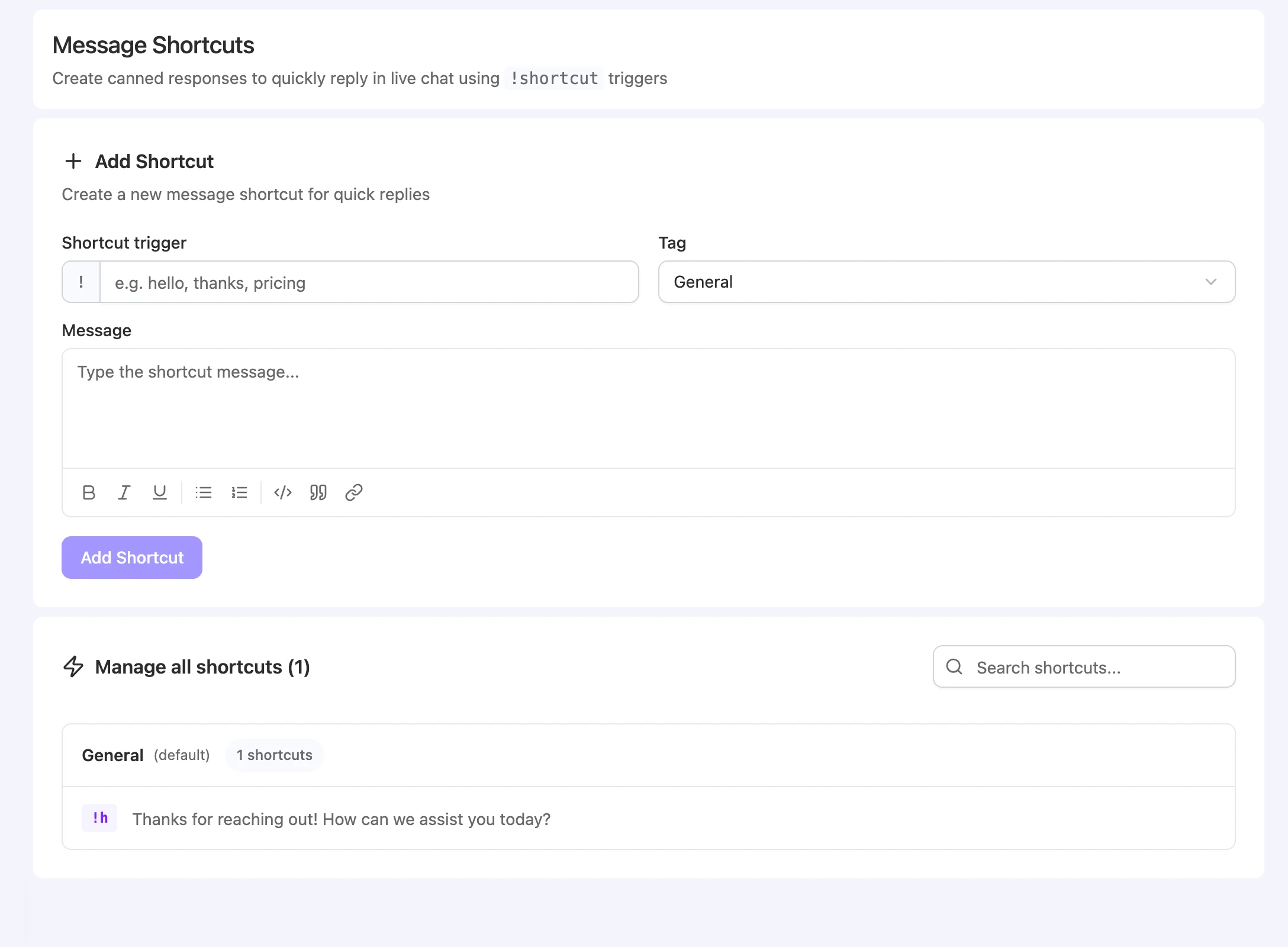
Open Settings > Shortcuts. The page has an Add Shortcut form at the top and a Manage all shortcuts list below it, grouped by tag.
Before you start
- You need a role that can reply in live chat: Owner, Team Admin, Bot Admin, Bot Editor, or Chat Agent.
Add a shortcut
-
Enter a trigger. In Shortcut trigger, type the word agents will type after
!, for examplehelloorpricing. -
Pick a tag. Choose a tag from the Tag list. New teams start with a General tag, marked (default).
-
Write the message. Type the reply in Message. The toolbar adds bold, italic, underline, lists, code blocks, quotes, and links.
-
Save it. Select Add Shortcut.
You can also save a reply you’ve already sent. In the inbox, open the menu on your message and select Save as shortcut.
Use a shortcut in live chat
-
Open the shortcut list. In the inbox composer, type
!, or select the Shortcuts tab. -
Find the shortcut. Keep typing to search. Use the arrow keys to move, Enter to select, and Esc to close.
-
Review and send. The shortcut’s message replaces what’s in the composer. Edit it if you need to, then send.
Shortcuts never send on their own. You always see the text before it goes to the visitor.
Manage shortcuts
| Control | What it does |
|---|---|
| Search shortcuts… | Filters the list by trigger or message. |
| Tag header | Shows the tag name and how many shortcuts it has. Select Hide or Show to collapse or expand it. |
| Edit tag | Renames the tag. |
| Edit (pencil) | Opens Edit Shortcut to change the trigger, tag, or message. |
| Delete (bin) | Deletes the shortcut. |
Editing or deleting a shortcut doesn’t change messages already sent with it.
Limitations
- Triggers can be up to 50 characters. Each trigger must be unique within your team.
- There are no placeholders. A shortcut is inserted exactly as written. Personalize it before you send.
- The default tag can’t be deleted. It always exists to hold shortcuts.
Troubleshooting
”No shortcuts configured” when I type !
Possible cause: Your team hasn’t saved any shortcuts yet.
Solution: Add one in Settings > Shortcuts.
I can’t save a new shortcut
Possible cause: Another shortcut in your team already uses that trigger, or the trigger is longer than 50 characters.
Solution: Choose a different, shorter trigger.