

Knowledge Base
The Knowledge Base is your team’s shared library of sources. A source is content you add for bots to answer from, such as a website, a file, or pasted text. FluentChat processes each source into documents and indexes them for search.
Sources belong to the team, not to a single bot. Each bot then chooses which sources it uses, on its own Knowledge page.
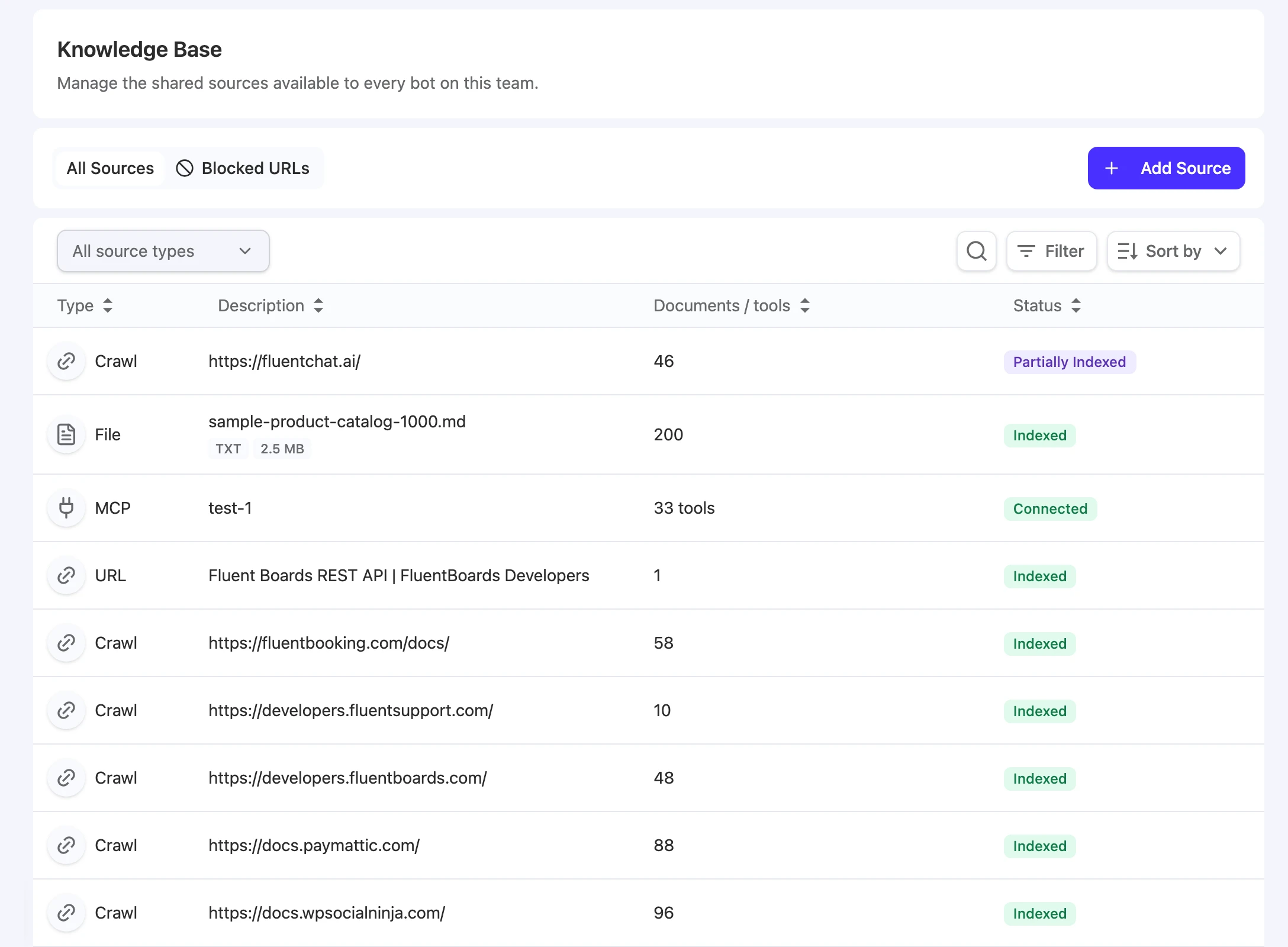
Click Knowledge Base in the team sidebar. The page has two tabs: All Sources and Blocked URLs.
Before you start
- To add, edit, refresh, or delete sources, you need the Owner, Team Admin, Bot Admin, or Bot Editor role.
Add a source
-
Click Add Source.
-
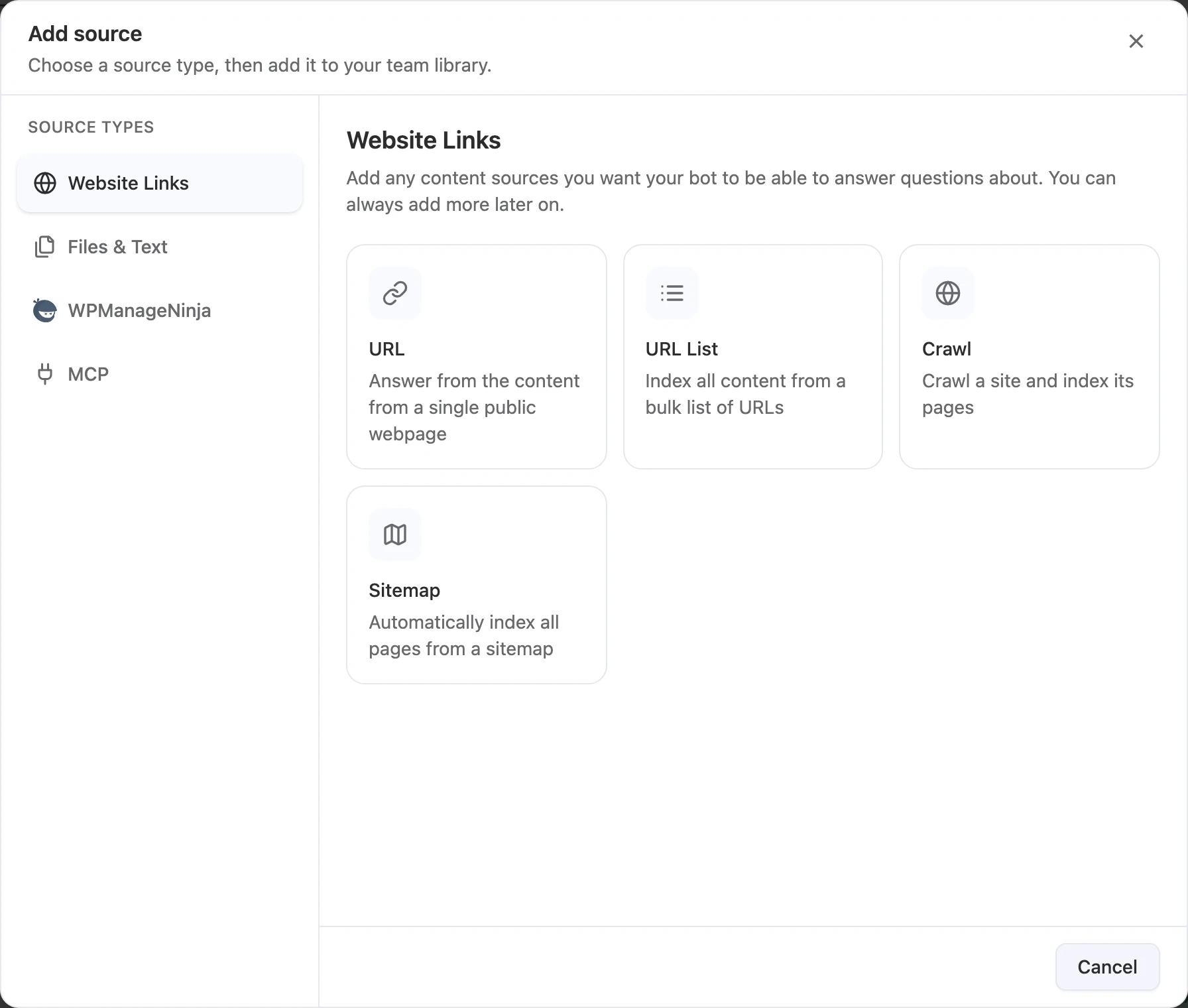
Pick a category and type. The dialog groups source types into Website Links, Files & Text, WPManageNinja, and MCP.
-
Fill in the form for that type and submit it. Each type is described in Source types.
You can also click Add source on a bot’s Knowledge page. The source still goes into the team library, and it’s selected for that bot automatically.
The sources table
Each row shows the source Type, its Description (title or URL), the number of Documents / tools, and its Status. Use the type filter, search, filter, and sort buttons above the table to find a source.
| Status | What it means |
|---|---|
| Queued | Waiting to be processed. |
| Scraping | Fetching pages from the website. |
| Indexing | Preparing documents for search. |
| Indexed | Ready. Bots that use this source can answer from it. |
| Partially Indexed | Some of the source’s documents are indexed and others aren’t. Bots can use the indexed ones. |
| Failed | Processing didn’t succeed. Open the source to retry. |
| Deleting | The source is being removed. |
| Connected / Not checked | MCP servers only: whether FluentChat has reached the server. |
On a bot’s Knowledge page, Ready means Indexed or Connected, and Needs attention covers every other status.
Open a source
Click a source to open its details.
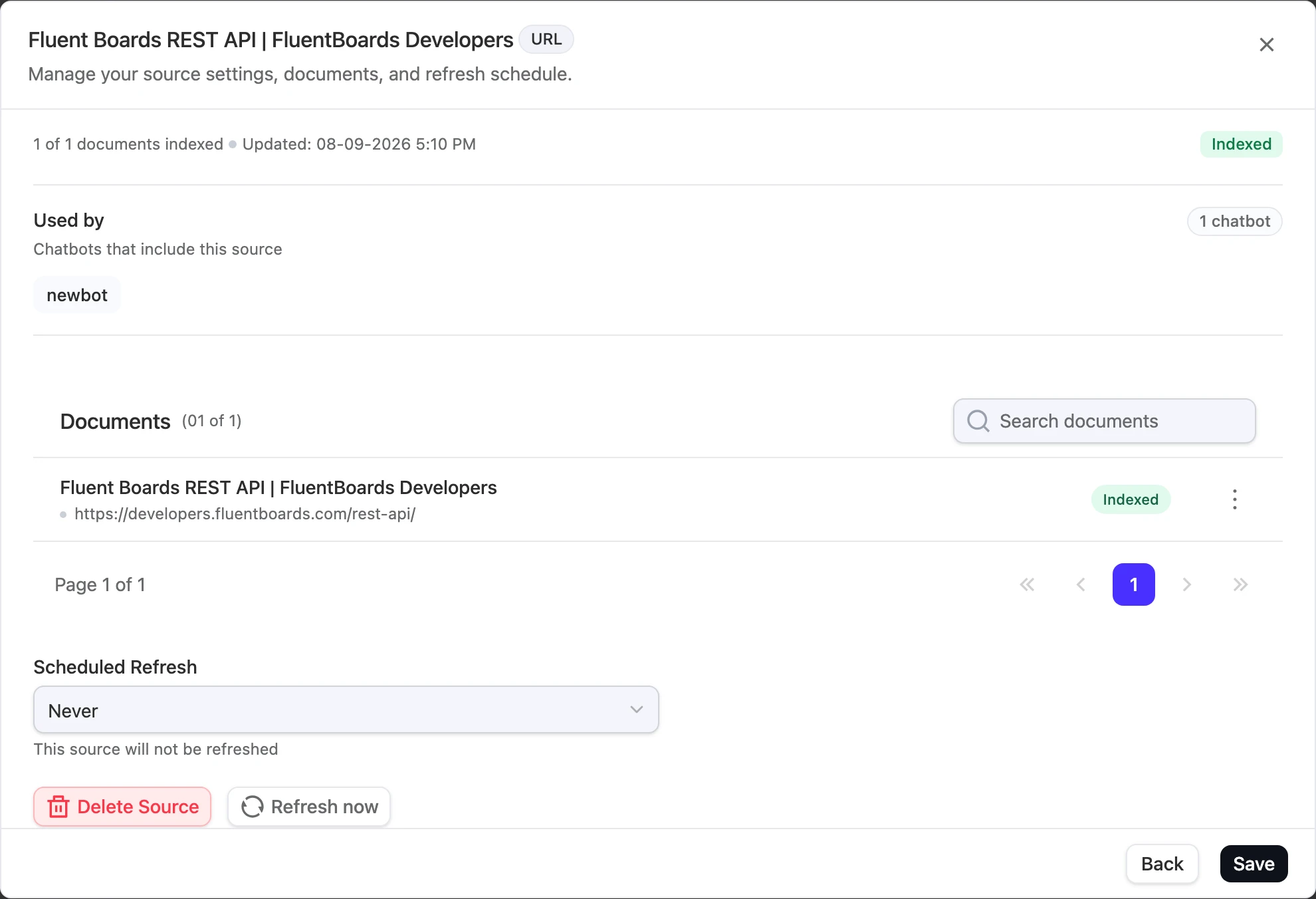
| Section | What you can do |
|---|---|
| Status line | See how many documents are indexed and when the source was last updated. |
| Used by | See which bots include this source. |
| Documents | Search the documents, open one to read its content, or use its menu to Block this URL or Delete document. |
| Failed URLs | If some pages failed, retry them or add them to the blocked list. |
| Scheduled Refresh | Choose how often the source refreshes: Never, Daily, Weekly, or Monthly. Click Save. |
| Refresh now | Fetch the content again right away. |
| Delete Source | Remove the source and its documents from the team. |
For refresh details, see Keep knowledge up to date.
Block URLs
Blocked URLs apply to the whole team and are skipped when FluentChat crawls a website. Use them to keep login pages, archives, or private sections out of your bots’ knowledge.
- From a document: open the source, open the document’s menu, choose Block this URL, and optionally turn on Also block all subpaths.
- From the tab: open Blocked URLs and add the exact URL.
Blocking affects future crawls. To remove content that’s already indexed, delete the document too.
Delete a source
Open the source, click Delete Source, and confirm. Deleting can’t be undone. The source and all its documents leave the team’s Knowledge Base, so every bot that used it loses that knowledge. The confirmation lists the affected bots.
To stop using a source in just one bot, leave it in the Knowledge Base and uncheck it on that bot’s Knowledge page instead.