

Choose a bot's knowledge
Each bot answers only from the team sources it’s allowed to use. You choose them on the bot’s Knowledge page. Changing the selection takes effect without re-processing any content.
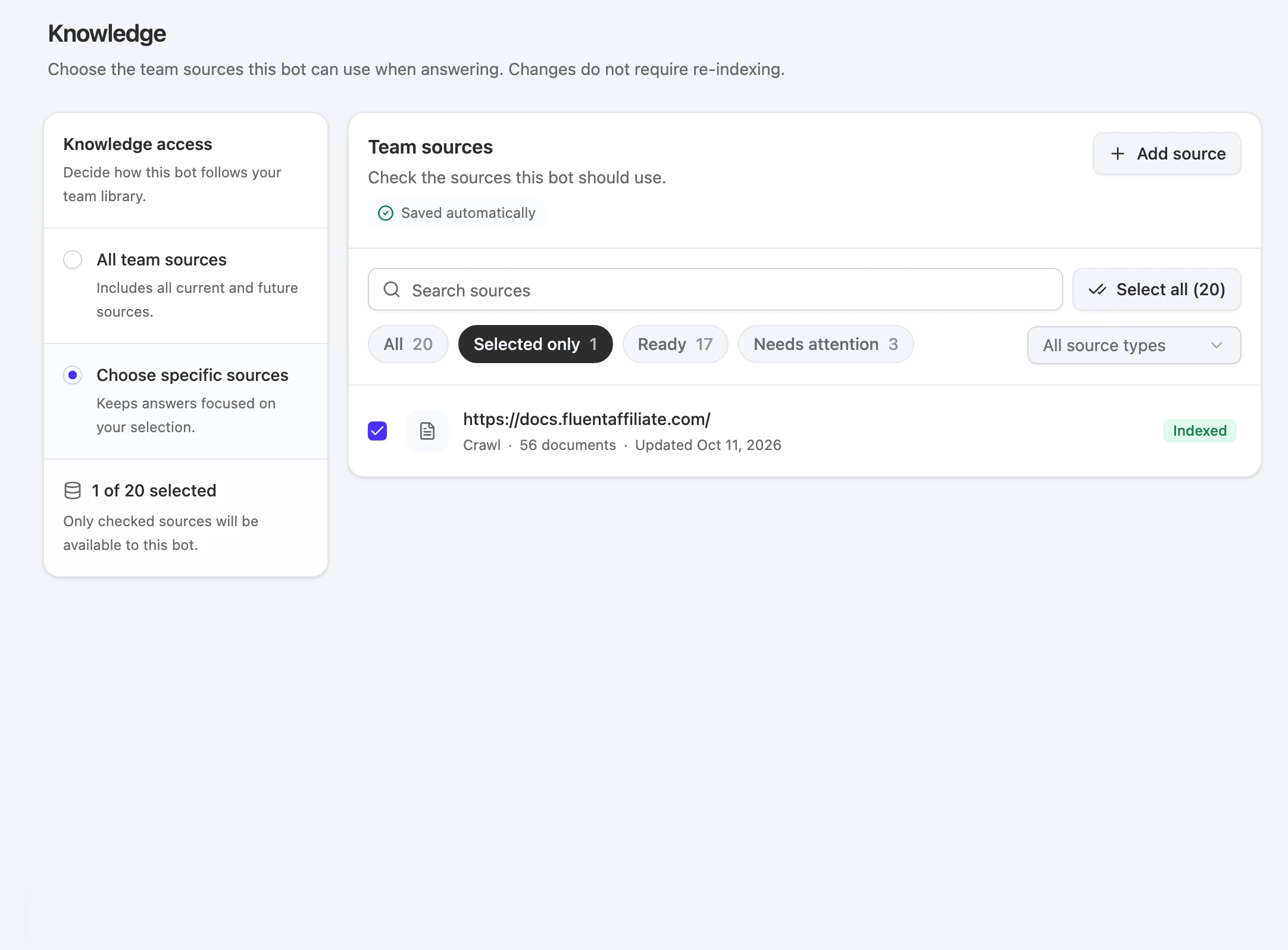
Open a bot and click Knowledge in its sidebar. The left card, Knowledge access, sets the mode. The right card, Team sources, lists every source in your team’s Knowledge Base.
Before you start
- To change a bot’s knowledge, you need the Owner, Team Admin, or Bot Admin role and access to that bot. Other roles see the page as View-only access. Bot Editor can add sources to the Knowledge Base but can’t change a bot’s selection.
- Your team needs at least one source. See Knowledge Base to add one.
Choose an access mode
| Mode | What the bot can use | Good for |
|---|---|---|
| All team sources | Every current source, plus any source added later. | A single bot, or a bot that should know everything your team adds. |
| Choose specific sources | Only the sources you check. New team sources aren’t added. | Several bots with different topics, such as one per product. |
New bots start with Choose specific sources and nothing selected, so they can’t answer from knowledge until you pick something.
Select specific sources
-
Choose Choose specific sources under Knowledge access.
-
Show every source. Click All in the filter row. Selected only shows just the checked ones.
-
Check the sources this bot should use. Use the search box, the Ready and Needs attention filters, or the source type menu to narrow the list. Select all checks every source at once.
-
Wait for the save. Your changes save automatically; the card shows Saved automatically when done.
Filters and statuses
| Filter | Shows |
|---|---|
| All | Every source in the team. |
| Selected only | Sources checked for this bot. |
| Ready | Sources that are Indexed, or MCP servers that are Connected. |
| Needs attention | Everything else, such as sources still processing, partially indexed, or failed. A partially indexed source still answers from its indexed pages. |
The bot answers from every indexed document in the sources it uses. A Partially Indexed source still answers from its indexed pages while the rest need attention; a source that is still processing or has Failed has nothing to answer from yet. Click View documents next to a source to see what it contains.
Add a source from this page
Click Add source to add a new source without leaving the bot. It goes into the team’s Knowledge Base like any other source. If the bot uses Choose specific sources, the new source is checked for this bot automatically. If it uses All team sources, it’s included anyway.
Things to know
- Selections are per bot. Unchecking a source here only affects this bot. Other bots and the Knowledge Base keep it.
- Deleting a source affects every bot. To remove content for one bot, uncheck it here instead of deleting it.
- MCP servers follow the same selection. A bot can use an MCP server’s tools only if the server is part of its knowledge.
- The selection applies to every channel. Each channel’s Data sources panel shows the same selection.