

Web search
The Web search action lets your bot look up current information on the web when its knowledge doesn’t cover a question. You can include images in results and limit results to domains you trust.
Open Bot > Actions > Action library > Web search.
Best for: questions that need recent or real-time facts, such as release news, latest versions or current prices.
Common requests:
- “What changed in the latest release?”
- “Is there any news about this outage today?”
- “What’s the current version of this plugin?”
Before you start
- You need the Owner, Team Admin or Bot Admin role.
Add web search
-
Open the template. In Bot > Actions, open Action library, select Web search, and select Start customizing.
-
Complete General. Enter an Action name, review When to use, and set Include Images and Included Domains (optional). See Settings. Select Save and continue.
-
Choose channels. Turn on each channel that may search the web, then select Save, or Save & enable to turn the action on at the same time.
-
Enable the action. Turn on Enable action if you didn’t use Save & enable.
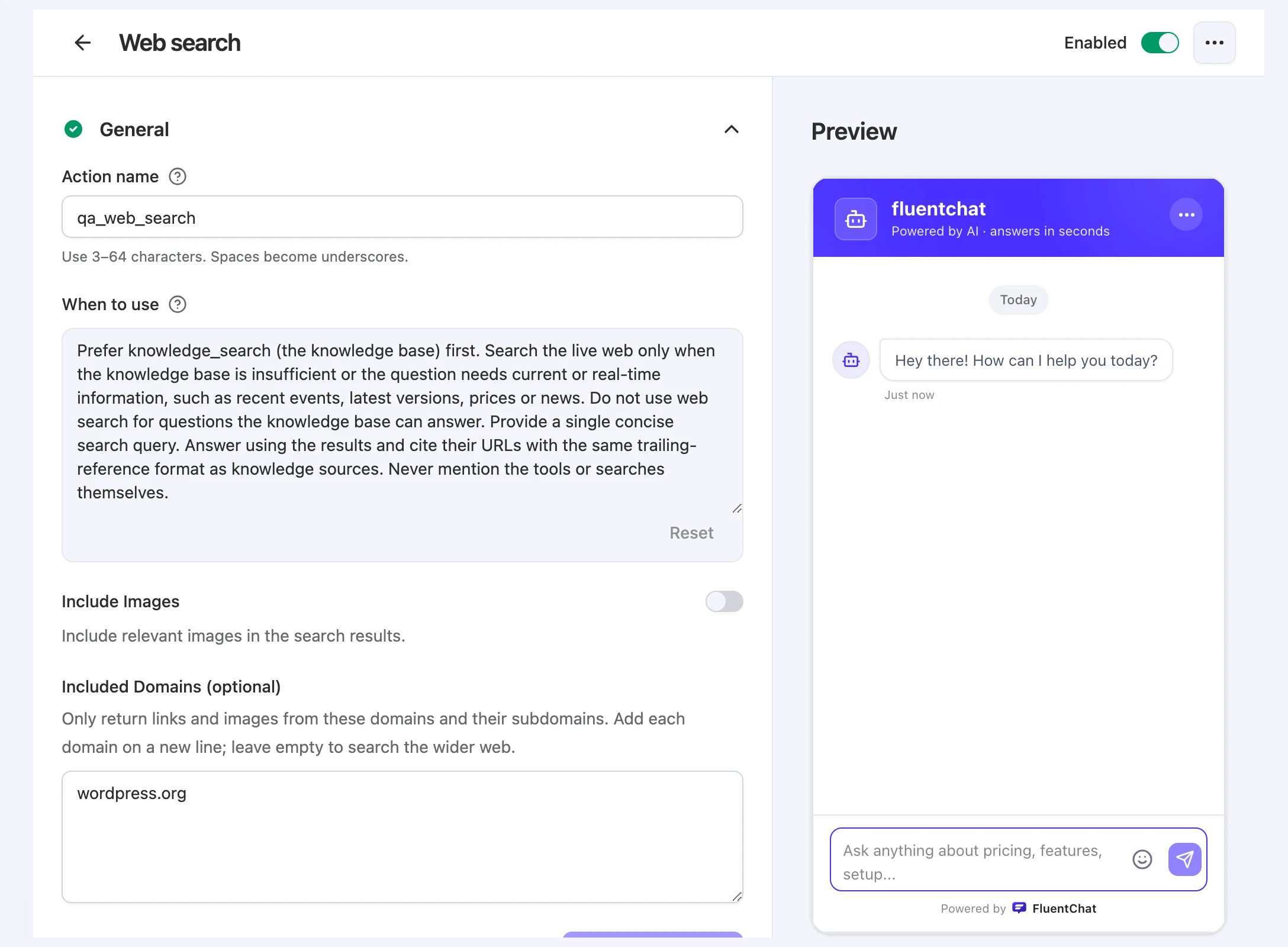
Settings
| Setting | What it does |
|---|---|
| Action name | The name the bot uses to call this action. Use 3–64 characters. Spaces become underscores. |
| When to use | Tells the bot when to search the web. Starts with default guidance; select Reset to restore it. |
| Include Images | Include relevant images in the search results. Off by default. |
| Included Domains (optional) | Only return links and images from these domains and their subdomains. Add each domain on a new line. Leave it empty to search the wider web. |
Included Domains
Enter one domain per line, such as example.com or docs.example.com. A domain also covers its subdomains, so example.com includes docs.example.com. If you paste a full address such as https://example.com/blog, FluentChat keeps only the host name. Domains are saved in lowercase, and duplicates are removed.
You can add up to 100 domains. Each must be a plain domain name, without a port or credentials.
Default When to use
The template starts with this guidance:
Prefer knowledge_search (the knowledge base) first. Search the live web only when the knowledge base is insufficient or the question needs current or real-time information, such as recent events, latest versions, prices or news. Do not use web search for questions the knowledge base can answer. Provide a single concise search query. Answer using the results and cite their URLs with the same trailing-reference format as knowledge sources. Never mention the tools or searches themselves.Keep the knowledge-first and citation parts if you edit it. Add your own topics, for example “Use web search for questions about this week’s product announcements.”
Use more than one web search action
You can add several Web search actions to one bot. For example, one action can search only your documentation domain, while another searches the wider web for news. Give each a distinct Action name and When to use so the bot can choose between them.
Channel compatibility
| Channel | Supported |
|---|---|
| Chat bubble | Yes |
| Help page | Yes |
| Center stage | Yes |
| API | Yes |
| Fluent Support | Yes |
Limitations
- The domain filter applies to returned source and image links. Text inside a search result can still mention other sites.
- Each search sends one query. The bot writes one concise search query per call. It can search again within the per-reply limit described in How the bot uses actions.
- No results isn’t an answer. If nothing usable comes back, or search is unavailable, the bot shouldn’t present the search as a finding.
Troubleshooting
The bot answers from knowledge instead of the web
Possible cause: The default When to use tells the bot to prefer knowledge first.
Solution: Add the topics that always need current information to When to use, with example questions.
Results come from sites you don’t want
Possible cause: Included Domains is empty, so the bot searches the wider web.
Solution: Add the domains you trust, one per line, and select Save and continue.