

Actions
An action is a capability you configure for a bot so it can do more than answer from its knowledge. Actions can search the web, offer a live chat, collect answers, show buttons, call your API, or work with FluentCart, FluentBooking and Fluent Support on your WordPress site.
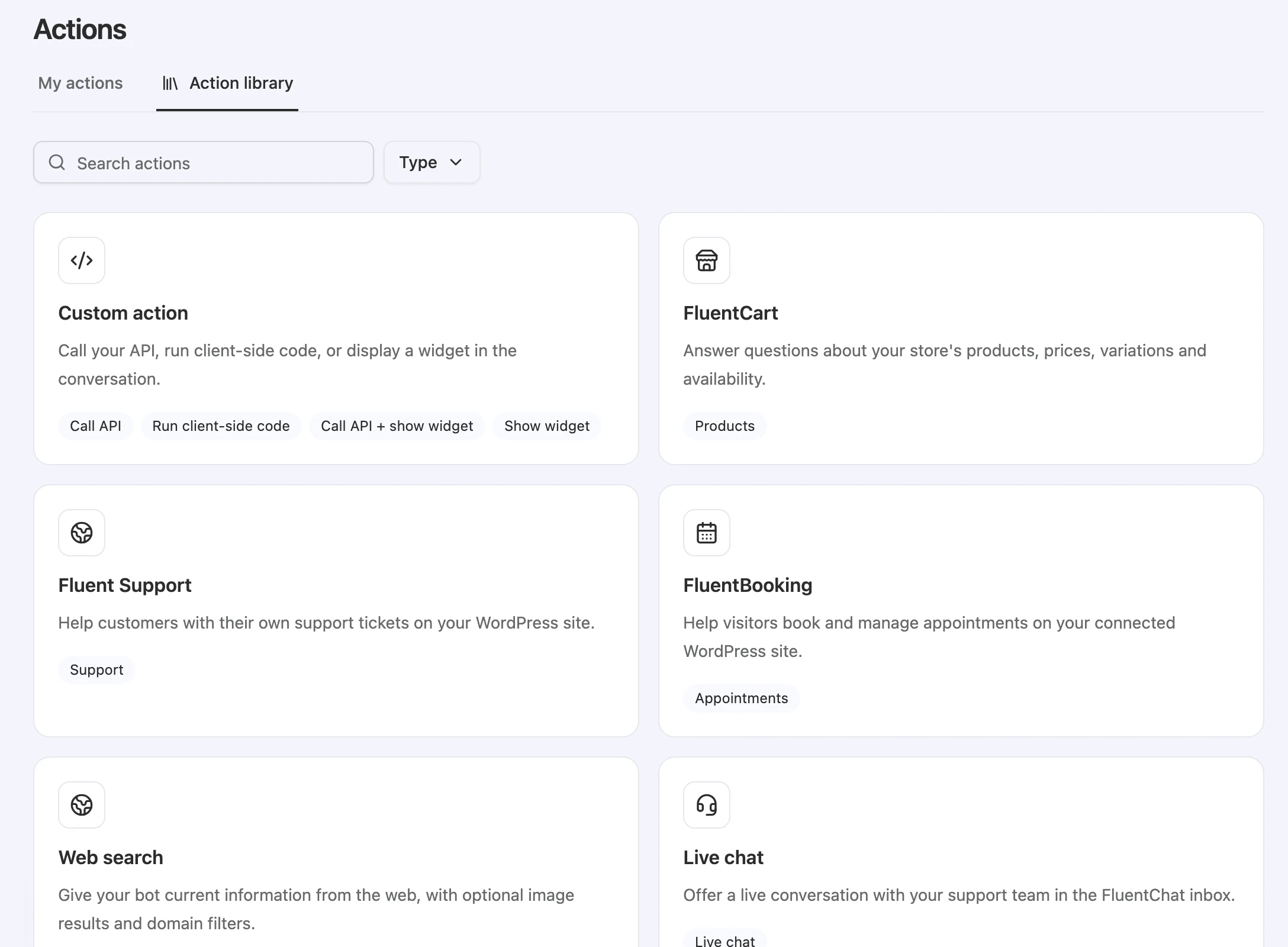
Open Bot > Actions. The page has two tabs: My actions lists the actions you have set up for this bot, and Action library lists the templates you can start from. Use Search actions and the Type filter (All types, Tools, Custom) to narrow either list.
Actions, knowledge search and channels
Three things work together when your bot answers a message:
| Concept | What it is | Where you manage it |
|---|---|---|
| Knowledge search | A built-in capability. The bot searches the sources selected for it. It is always on and isn’t in the Action library. | Bot > Knowledge |
| Actions | Capabilities you add and configure, one instance at a time. Each one is off until you finish setup and enable it. | Bot > Actions |
| Channels | The places people reach the bot: Chat bubble, Help page, Center stage, API and Fluent Support. | Bot > Channels |
Each action lists the channels it’s compatible with, and you choose which of those channels may use it. On a channel’s page, the Actions area says: “Knowledge search is always available. Choose which configured actions this channel can use.”
Action library
Select a card in Action library to open a preview with an example conversation, then select Start customizing.
| Category | Library entry | What it does | Guide |
|---|---|---|---|
| Information | Web search | Gives your bot current information from the web, with optional image results and domain filters. | Web search |
| Human support | Live chat | Offers a live conversation with your support team in the FluentChat inbox. | Live chat action |
| Conversation | Suggested messages | Offers useful choices for the visitor’s next message. | Custom buttons and suggested messages |
| Navigation | Custom button | Shows a button linking to a page you choose. | Custom buttons and suggested messages |
| Data collection | Collect data | Collects structured answers in the conversation and sends them to your destinations. | Collect data and custom forms |
| Data collection | Custom form | Shows a form and sends the visitor’s answers to your destinations. | Collect data and custom forms |
| Custom | Custom action | Calls your API, runs client-side code on your website, or shows a widget in the conversation. | Custom action |
| WordPress | FluentCart | Answers questions about your store’s products, prices, variations and availability. | FluentCart |
| WordPress | FluentBooking | Helps visitors book and manage appointments on your connected WordPress site. | FluentBooking |
| WordPress | Fluent Support | Helps signed-in customers with their own support tickets on your WordPress site. | Fluent Support tickets |
You can create more than one action from the same template. For example, you can add two web search actions that search different domains. Each action keeps its own name, settings and channel choices.
Before you start
- You need the Owner, Team Admin or Bot Admin role to create, change, enable or delete actions. Members with other roles can’t change actions. See Teams and members.
- FluentCart and FluentBooking need this bot’s WordPress integration set up and enabled. Until it is, the library preview shows Set up WordPress instead of Start customizing. The Fluent Support action also needs it before it can be enabled. See WordPress integration.
Set up an action
Every action follows the same path. Template-specific sections sit between General and Channels.
-
Choose a template. In Bot > Actions, open Action library, select a card, and select Start customizing.
-
Complete General. Enter an Action name and review When to use. See General settings below.
-
Complete the template’s sections. Some templates add sections such as Fields, Destinations, Webhooks, Action type or provider access. Each action’s guide describes them. Select Save and continue to save and move on.
-
Choose channels. In Channels, turn on each compatible channel that may use this action, then select Save. To save and turn the action on in one step, select Save & enable.
-
Enable the action. Turn on the Enable action switch at the top of the editor. You can also use the switch on the action’s card in My actions.
-
Test it. Use the Preview panel beside the editor, or the Playground for actions that work there. See Test an action.
If you leave the editor with unsaved changes, FluentChat asks Leave without saving? Select Keep editing to stay, or Discard changes to leave.
General settings
| Setting | What it does |
|---|---|
| Action name | The name the bot uses to call this action. Use 3–64 characters. Start with a letter or underscore, then use letters, numbers, underscores or hyphens. Spaces become underscores as you type. Each name must be unique within the bot. |
| When to use | Tells the bot when to use this action and what it does. The bot reads this text to decide which action fits the visitor’s message. Up to 8,000 characters. |
| Reset | Restores the template’s default When to use text. Shown for templates that have one. |
Some names are reserved and can’t be used, such as knowledge_search, handoff, mcp, names that start with mcp_, and request_human_agent for anything other than a Live chat action. A reserved or duplicate name shows “Choose a unique tool name. This name is already used or reserved.”
Renaming an action doesn’t change what it does or which channels may use it.
Write a good When to use
Most templates start with default When to use text that already describes safe behavior. Edit it to describe your situation:
- Say which visitor requests should trigger the action, with a few example questions.
- Say what the action returns or changes, and what the bot must not claim.
- Keep each action’s text distinct, so the bot can tell similar actions apart.
Action status
Each card in My actions shows a status and a button:
| Status | What it means | What you can do |
|---|---|---|
| Draft | Setup isn’t finished, or a requirement such as a destination or a verified connection is missing. The action can’t be enabled yet. | Select Continue setup. |
| Disabled | Setup is complete, but the bot won’t use the action. | Turn on the switch, or select Customize. |
| Enabled | The bot can use the action on the channels you allowed. | Select Customize to change it. |
On a channel’s Actions area, each compatible action shows one of these:
| Channel status | What it means |
|---|---|
| Finish setup in Actions | The action is still a draft or needs another setup step. |
| Disabled for this bot | Setup is complete, but the action is turned off. |
| Available on this channel | The action is enabled and allowed on this channel. |
| Unavailable on this channel | The action is enabled but not allowed on this channel. |
A channel switch allows or blocks an action on that channel. It doesn’t enable a disabled action. When you add a channel later, existing actions stay off on it until you allow them.
Channel compatibility
| Action | Chat bubble | Help page | Center stage | API | Fluent Support |
|---|---|---|---|---|---|
| Web search | Yes | Yes | Yes | Yes | Yes |
| FluentCart | Yes | Yes | Yes | Yes | Yes |
Custom action, Call API with GET | Yes | Yes | Yes | Yes | Yes |
| Custom action, other types | Yes | Yes | Yes | No | No |
| Live chat | Yes | Yes | Yes | No | No |
| Custom button | Yes | Yes | Yes | No | No |
| Suggested messages | Yes | Yes | Yes | No | No |
| Collect data | Yes | Yes | Yes | No | No |
| Custom form | Yes | Yes | Yes | No | No |
| FluentBooking | Yes | Yes | Yes | No | No |
| Fluent Support | Yes | Yes | Yes | No | No |
In the Channels section of the editor, a channel that is turned off shows Disabled next to its name. You can still allow the action there; it starts working when the channel is enabled.
Test an action
Tests are real conversations. They count toward usage and call your real APIs and services.
| Where | What you can test |
|---|---|
| Preview panel in the action editor | Always uses the Chat bubble. The action must be enabled and allowed on Chat bubble. Use it for buttons, forms, bookings, live chat offers and other website actions. |
| A channel’s Preview | Tests the action as visitors of that channel see it. |
| Playground | A text chat for the bot. Every enabled, fully set-up action is available here regardless of channel choices, but only actions that don’t need a website interface run, such as Web search and Custom action calls that use GET. FluentCart doesn’t run here; test it with Preview. |
How the bot uses actions
When a visitor sends a message, the bot can search its knowledge and use the actions available on that channel, in several steps if needed. In one reply, it can make up to 10 tool calls in total, counting knowledge searches and actions. When it reaches that limit, it answers from what it has already confirmed and says when something is incomplete.
Bookings, API writes and support ticket changes are prepared first. The visitor reviews the exact change and confirms it with a button in the chat. Typing “yes” isn’t a confirmation.
Disable or delete an action
- Disable: Turn off the action’s switch in My actions or the Enable action switch in the editor. Its settings and channel choices stay.
- Delete: Select Options (the ⋯ button) on the card, or Action options in the editor, then Delete Action.
Limitations
- A bot can have up to 50 actions. Delete actions you no longer use to add more.
- You can’t enable an action until General and Channels are saved. Enabling early shows “Complete General and Channels before enabling this action.” Some templates have extra requirements, such as a destination or a verified WordPress connection.
- Only one Suggested messages action can generate suggestions after every message. Turning on a second one shows “Only one enabled action can generate suggestions after every message.”
- Website actions need a website channel. Buttons, forms, bookings, live chat offers and client-side code need the Chat bubble, Help page or Center stage.
Troubleshooting
The Enable switch is greyed out
Possible cause: The action is a draft, or it has unsaved changes.
Solution: Select Continue setup or Customize, finish each section, save Channels, then try again.
The bot doesn’t use the action
Possible cause: The action isn’t allowed on the channel you’re testing, or When to use doesn’t match the visitor’s request.
Solution: Check the channel’s Actions area for Available on this channel. Then make When to use more specific, with example questions.
No compatible actions available. Add or finish an action to use it here.
Possible cause: The channel has no actions that are compatible with it and fully set up.
Solution: Select Manage actions and finish an action that supports this channel. See Channel compatibility.